Нажмите или перетащите
Image-to-Image: Полное Руководство
4 мощных сценария использования
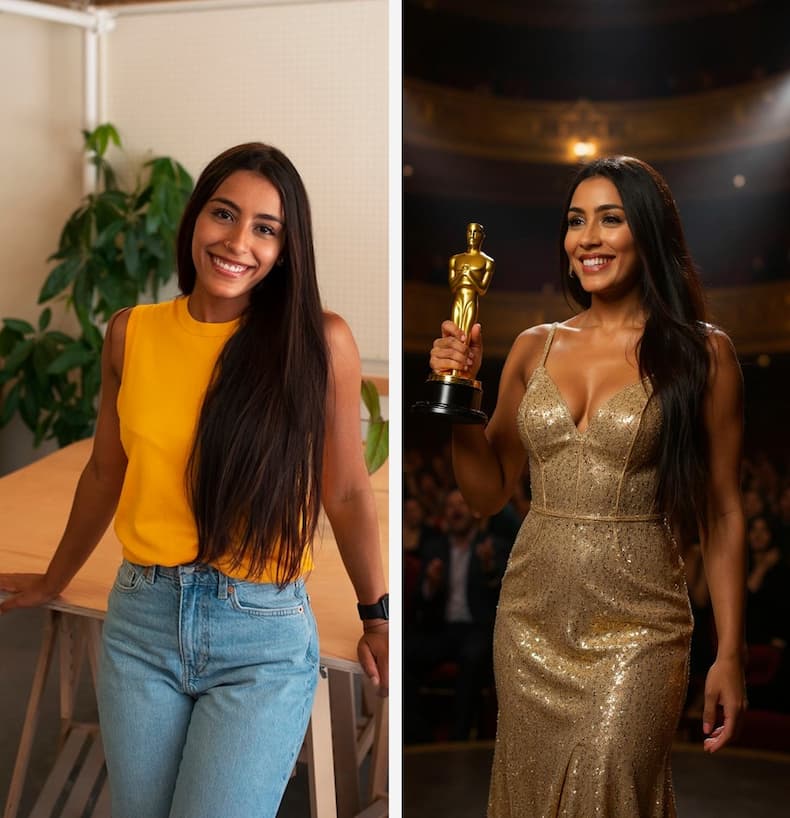
Замена Сцены и Фона
Сохраняйте объекты неизменными, перенося их в совершенно новые среды. От городских улиц до тропических пляжей — ИИ сохраняет каждую деталь оригинальной композиции.
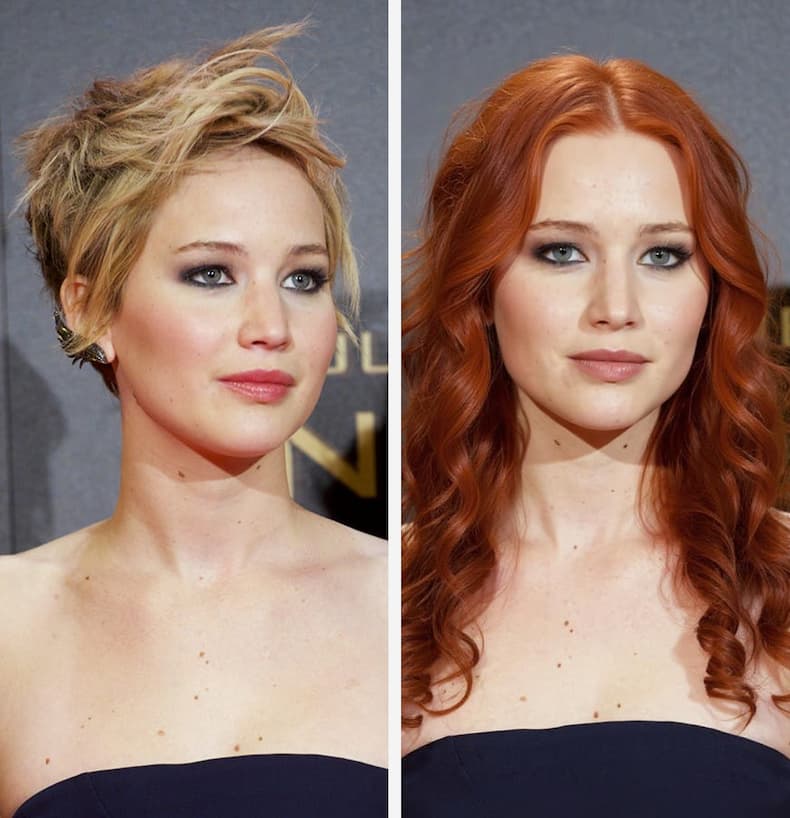
Консистентность и Слияние Мульти-Изображений
Загружайте несколько референсных изображений для идеальной консистентности персонажей, нарядов и продуктов. Генерируйте бесконечные вариации, сохраняя идентичность и стиль.
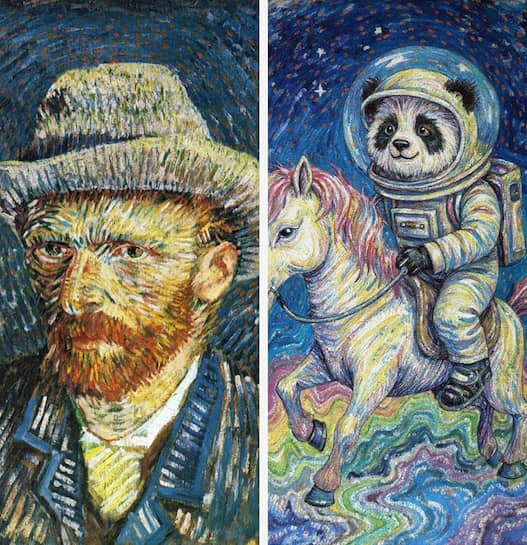
Трансфер и Генерация Художественного Стиля
Превращайте обычные фото в потрясающие масляные картины, акварельные иллюстрации или концепт-арт в стиле киберпанк. Применяйте культовые художественные стили, сохраняя оригинальный объект и композицию.
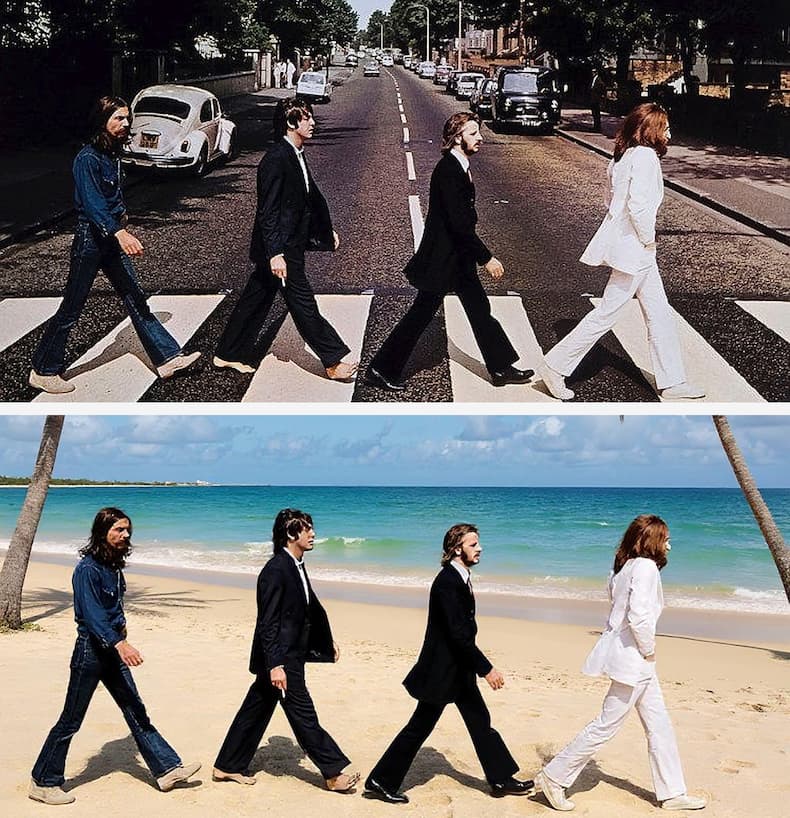
Фотореалистичное Редактирование Портретов
Превращайте обычные снимки в профессиональные портреты с идеальным освещением, текстурой и деталями. Меняйте наряды, локации и настроения, сохраняя черты лица.
Начните за 3 Шага
Создавайте за минуты с нашим оптимизированным процессом
Загрузите Референсное(ые) Изображение(я)
Перетащите одно или несколько изображений. Каждое дополнительное изображение добавляет 15 кредитов. Макс. размер: 2048px.

Опишите Ваше Видение
Напишите чёткий промпт, выберите соотношение сторон и уровень качества (Medium / High / Ultra).

Сгенерируйте и Скачайте
Увидьте точную стоимость в кредитах перед генерацией. Один клик — ваше произведение за секунды.
Про-Советы для Идеальных Результатов
5 техник, отличающих любительские результаты от профессионального искусства
Никогда Не Используйте Негативные Промпты
ИИ не понимает 'нет' или 'без'. Вместо 'без размытого фона' напишите 'резкий объект на чистом однотонном фоне'.
Фиксируйте Цвета через Hex-Коды
Нужна консистентность бренда? Включайте точные hex-коды вроде #FF5733 или конкретные названия Pantone в ваш промпт для точного цветового соответствия.
Используйте Структурированный Промптинг
Организуйте промпт как JSON: Сцена, Объект, Освещение, Камера (угол, объектив). Это даёт хирургический контроль над результатом.
Освойте Формулу Стоимости
Итого = 15 базовых + (15 × входных изображений) + стоимость качества. Начните с 1 изображения + Medium (40 кредитов) для теста, затем масштабируйте.
Соблюдайте Лимит в 2048px
Любая сторона, превышающая 2048px, будет отклонена. Заранее измените размер больших изображений, чтобы избежать прерываний и сэкономить время загрузки.
Часто Задаваемые Вопросы
Всё, что нужно знать перед генерацией вашего первого изображения
Исследуйте Другие AI-Инструменты
Мощные утилиты для изображений, работающие бесшовно вместе
Генератор Изображений с ИИ
Создавайте потрясающие изображения только из текстовых описаний.
Редактор Фотографий с ИИ
Редактируйте, ретушируйте и улучшайте существующие фотографии с ИИ-точностью.
Улучшатель Изображений с ИИ
Повышайте чёткость, цвет и детализацию в изображениях низкого качества.
Удалитель Объектов с ИИ
Удаляйте нежелательных людей, текст, блики или объекты в один клик.
Удалитель Фона
Мгновенно выделяйте объекты на прозрачном или сплошном фоне.
Изображение в Видео с ИИ
Оживите ваши статичные изображения с помощью движения на базе ИИ.