Click or drag
AI Object Remover — Clean Up Photos with a Simple Text Command
Tired of photobombers, distracting objects, or watermarks ruining your shot? Our AI Object Remover lets you erase any unwanted elements.
Perfect Your Photos for Any Occasion
Six powerful ways to clean up your images
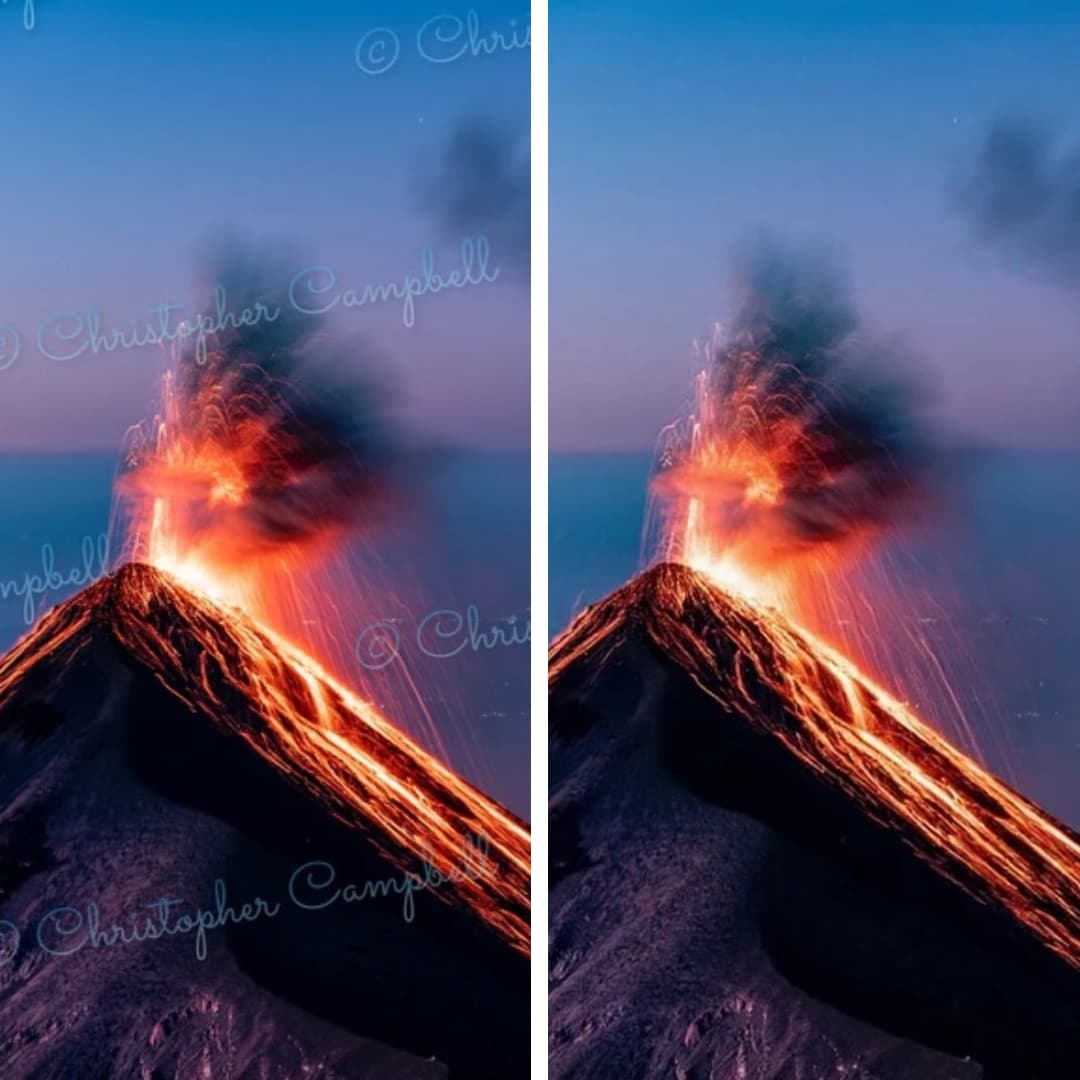
Remove Watermark from Photo
Restore your images to their original state. Seamlessly removes any watermark and reconstructs background details.
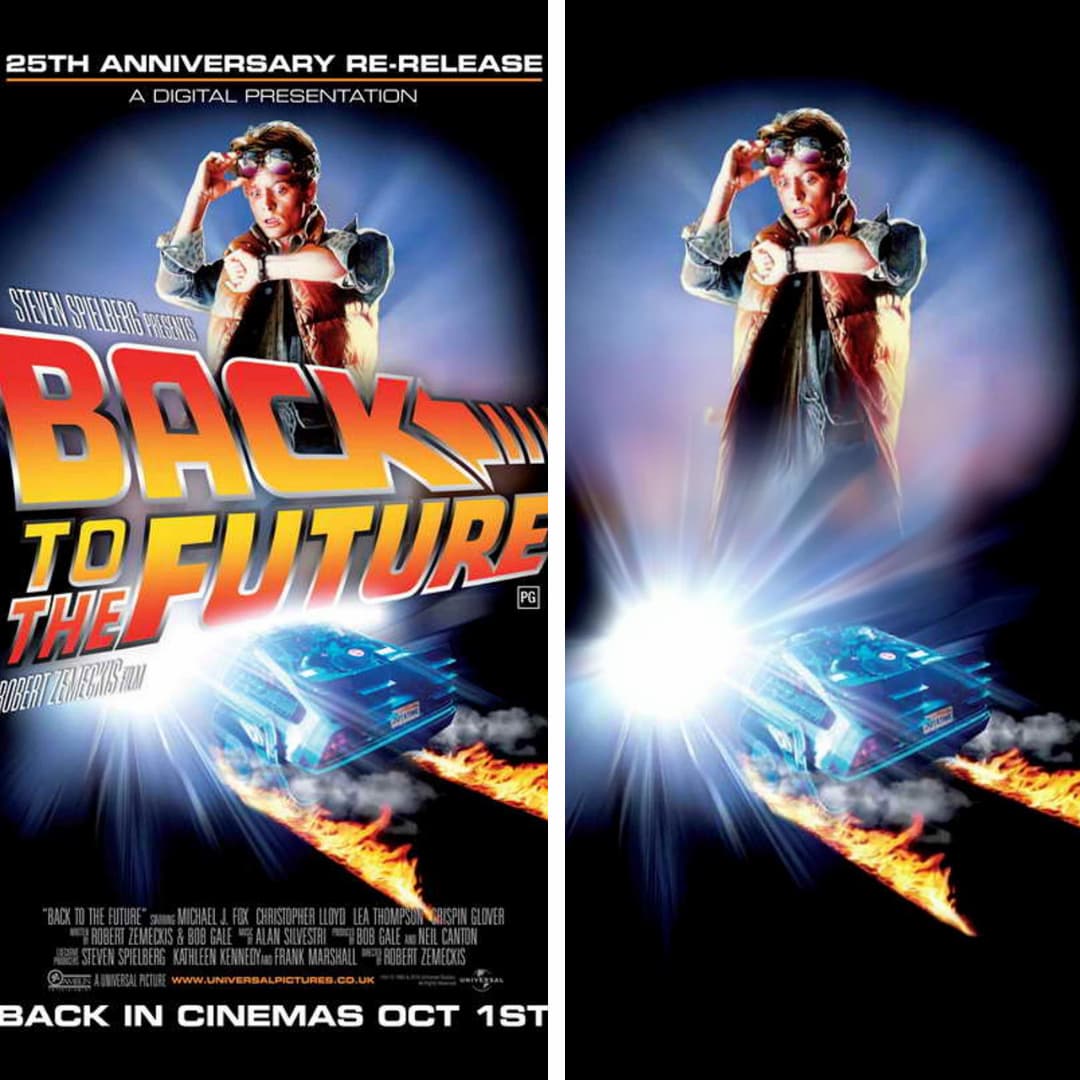
Remove Text from Image
Easily erase unwanted captions, dates, logos, or any other text from your images. Perfect for clean visuals.
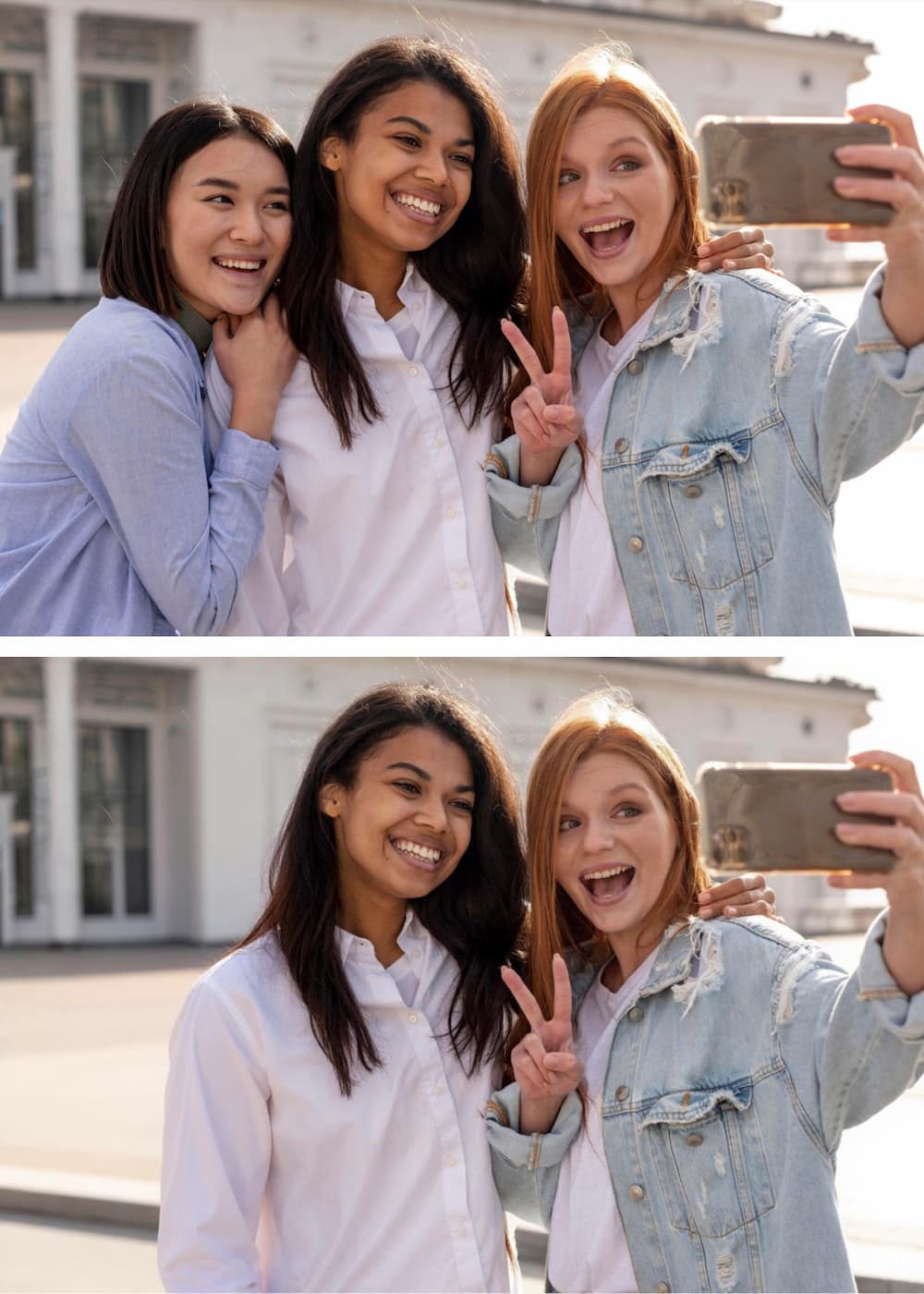
Remove Person from Photo
Get the perfect shot by removing unwanted people. Our AI fills in the background so accurately, it looks like they were never there.
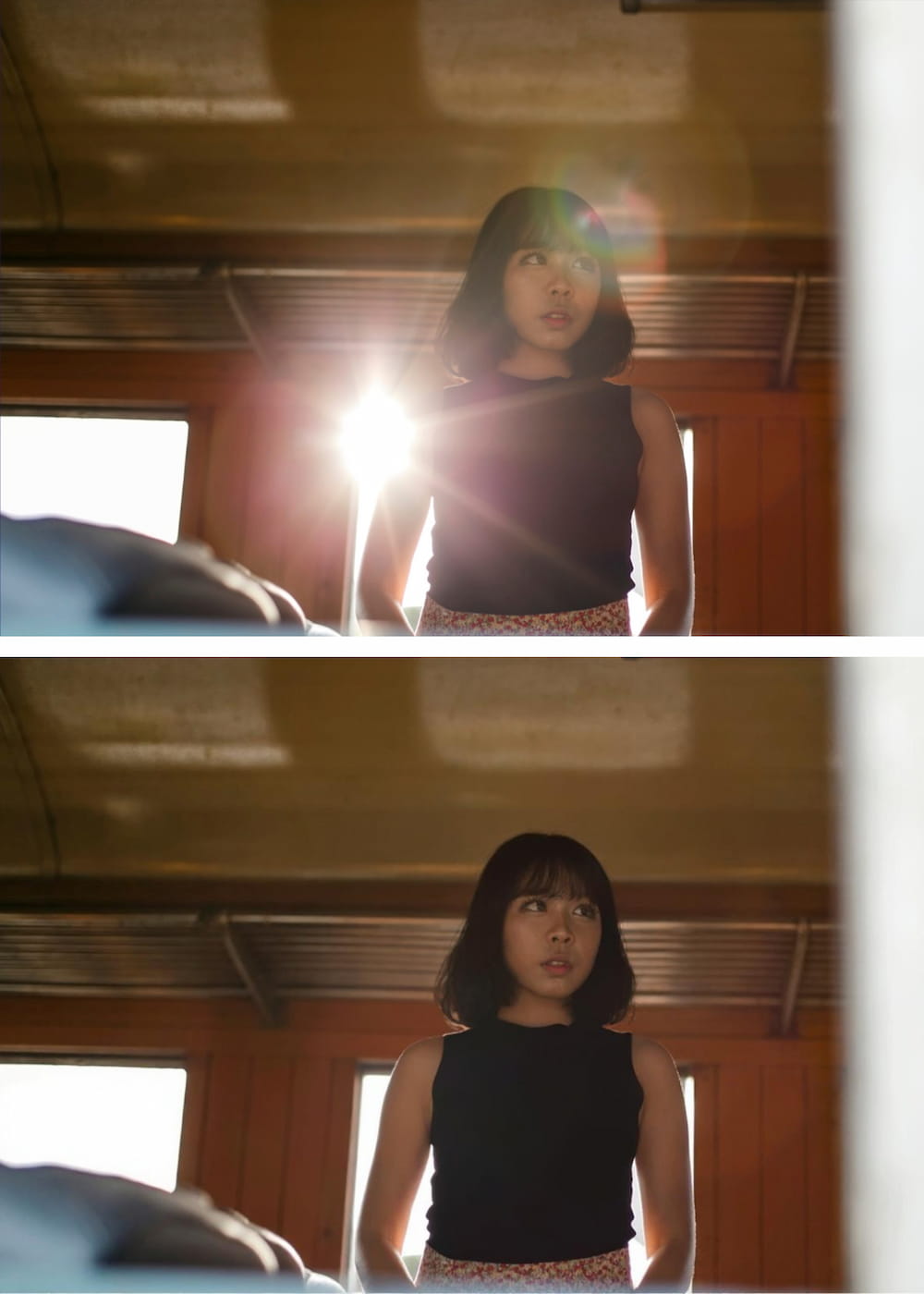
Remove Glare from Photo
Fix photos affected by harsh lighting. Digitally remove or reduce distracting light glares and reflections from glass or metal.
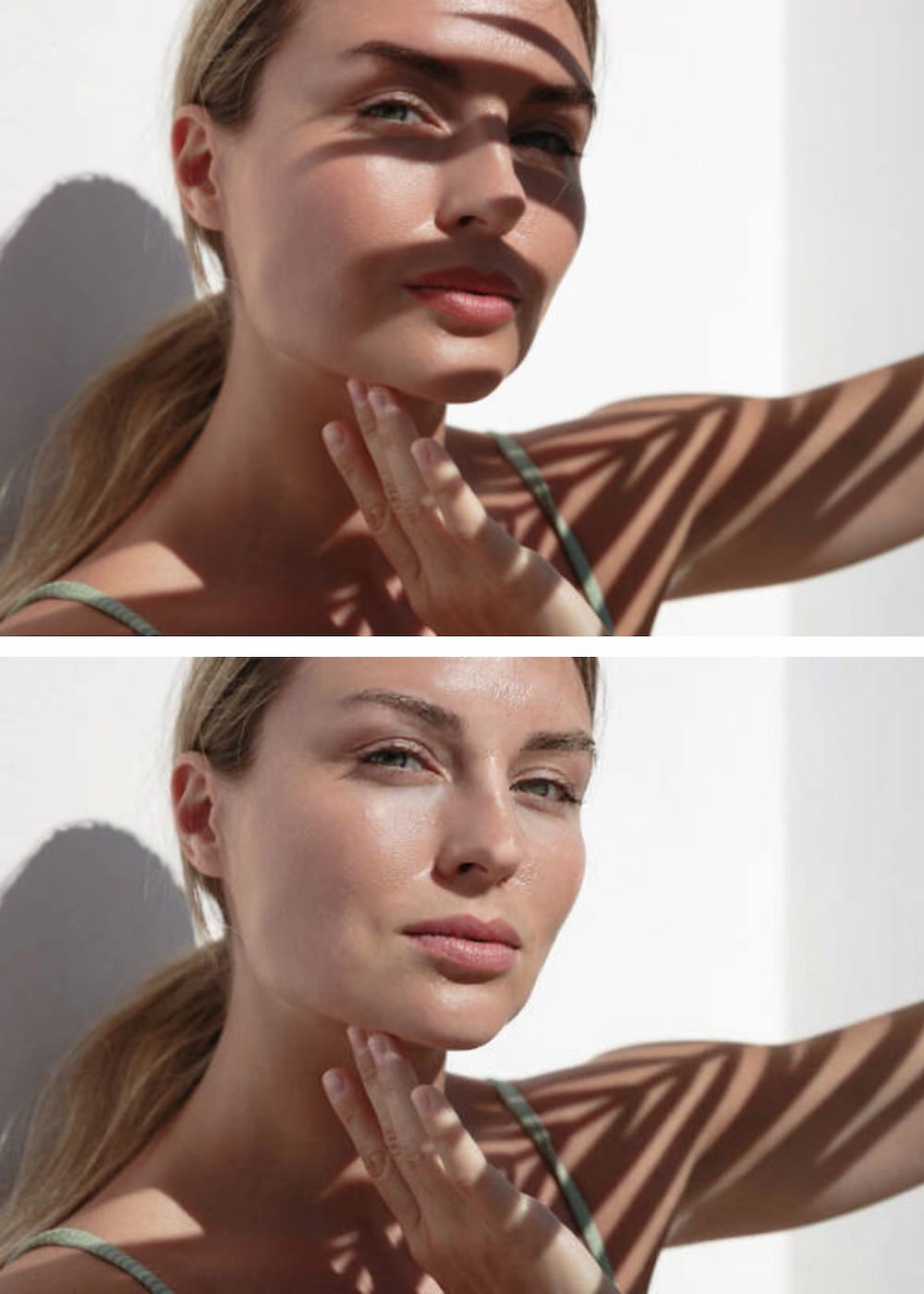
Remove Shadow from Photo
Correct unflattering or distracting shadows from subjects or backgrounds. AI analyzes lighting for a balanced, natural look.
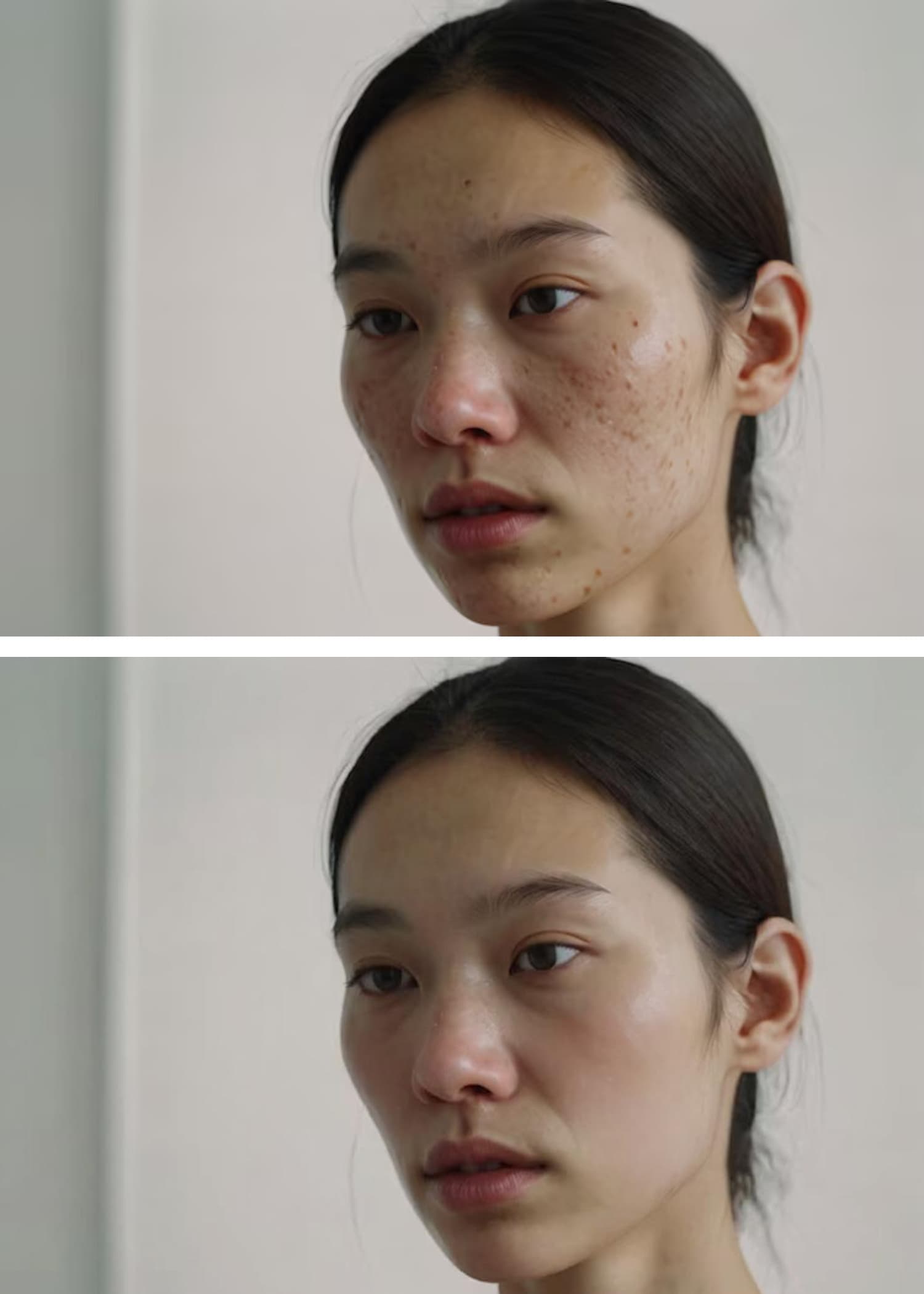
AI Blemish Remover
Achieve flawless skin in portraits. Instantly clears away acne, pimples, and skin imperfections for a smooth, professional finish.
Get Started in 3 Steps
Remove any object in minutes with our streamlined workflow

Upload Your Photo
Click 'Upload Image' and select your picture. We accept JPG, PNG, and WEBP.

Describe the Object
Type a clear description of what you want to erase. Our AI understands natural language.
Remove & Download
Hit 'Remove' and watch AI precisely erase the object while rebuilding the background.
Why Choose Text-Based Object Removal?
See how our AI compares to traditional editing tools
| Feature | Our AI Object Remover | Traditional Editors |
|---|---|---|
| Method | Simple Text Prompts Type 'the blue car' to remove it. Intuitive and fast. | Manual Brushing Requires you to tediously 'paint' over an object with your mouse or finger. |
| Precision | AI-Powered Identification The AI precisely selects the object based on your description, avoiding mistakes. | Unsteady Hand / User Error It's easy to accidentally brush over parts you want to keep, or miss parts of the object. |
| Learning Curve | None If you can type, you can use our tool. It's that simple. | Steep Learning clone stamps, healing brushes, and layers in Photoshop takes practice. |
| Technology | Advanced Generative AI Understands context and objects to create a seamless, realistic background. | Basic Clone/Smudge Tools Often results in blurry spots or repetitive patterns that look unnatural. |
Type 'the blue car' to remove it. Intuitive and fast.
Requires you to tediously 'paint' over an object with your mouse or finger.
The AI precisely selects the object based on your description, avoiding mistakes.
It's easy to accidentally brush over parts you want to keep, or miss parts of the object.
If you can type, you can use our tool. It's that simple.
Learning clone stamps, healing brushes, and layers in Photoshop takes practice.
Understands context and objects to create a seamless, realistic background.
Often results in blurry spots or repetitive patterns that look unnatural.
Pro Tips for Perfect Results
Six techniques that guarantee clean, natural-looking edits
Be Specific and Descriptive
The more detail you provide, the better the AI identifies the correct object. Try 'remove the man in the blue hat' instead of just 'remove the man'.
Use Colors, Shapes, and Textures
Help the AI lock onto your target by including visual characteristics. Example: 'erase the round, wooden table' or 'remove the yellow flower'.
Describe the Position
If there are multiple similar objects, specify the location. Example: 'remove the bird on the left' or 'delete the car in the background'.
Remove One Object at a Time
For the cleanest results, focus on a single object per command. Run multiple commands sequentially for complex edits.
Rephrase If Needed
If the first result isn't perfect, try describing the object differently. The AI may understand an alternative description better.
Use Visual Cues
You can also use visual cues to guide the model to focus on particular regions for targeted changes.
Frequently Asked Questions
Everything you need to know before removing your first object
Explore More AI Tools
Powerful image utilities that work seamlessly together
AI Image Generator
Create stunning images from text descriptions alone.
AI Photo Editor
Edit, retouch, and enhance existing photos with AI precision.
AI Image Enhancer
Boost clarity, color, and detail in low-quality images.
Background Remover
Instantly isolate subjects with transparent or solid backgrounds.
AI Headshot Generator
Create professional headshots from casual photos in seconds.
Image to Video AI
Bring your static images to life with AI-powered motion.